



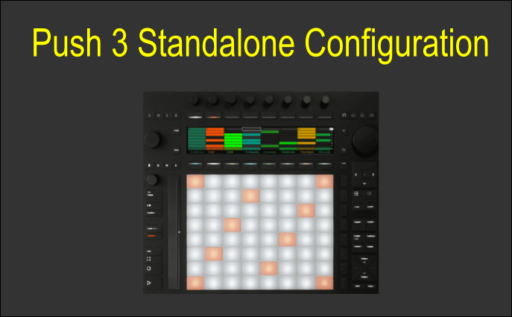
Starting with version 2.4 of Push 3, you can use Loop4Live with it.
Prerequisites
- Make sure you have at least version 2.4 installed on your push
- Your Push is connected to the same wifi as your computer
Remote scripts installation
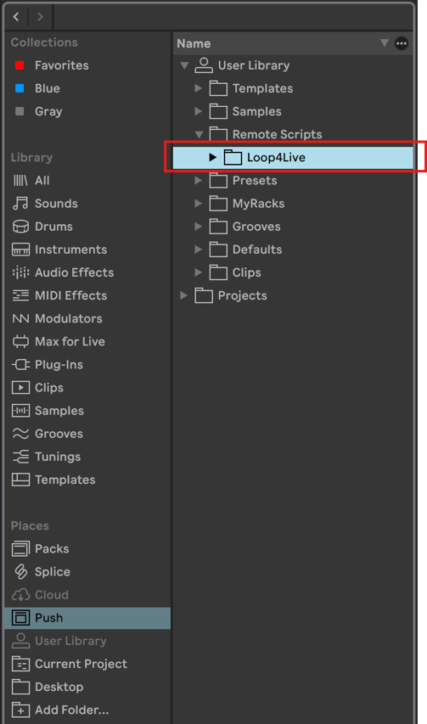
Connect your Push 3 in standalone mode (connected to the same wifi as your computer) and launch Ableton Live on your computer. You’ll then be able to access your Push from your computer in the “Places” section of Ableton:
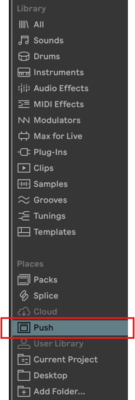
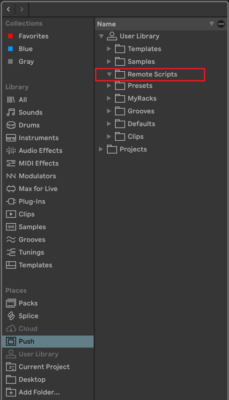
Create a folder named “Remote Scripts” in the “User Library” section of Push using the Ableton interface:
Download the Loop4Live scripts from https://www.loop4live.com/downloads/
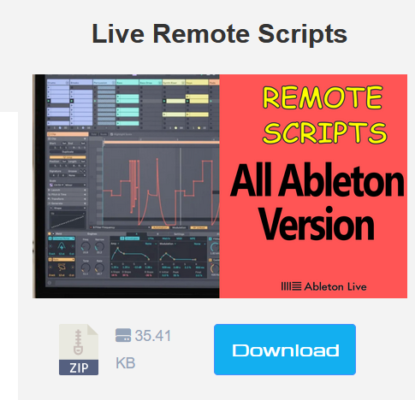
Unzip the downloaded archive to create a folder named “Loop4Live”.
Place this Loop4Live folder in the Push’s “Remote Scripts” directory as follows:
Restart your Push 3 in standalone mode, connect the Loop4Live to a USB port on the Push 3, and go to the “Setup” section and the “MIDI” tab:
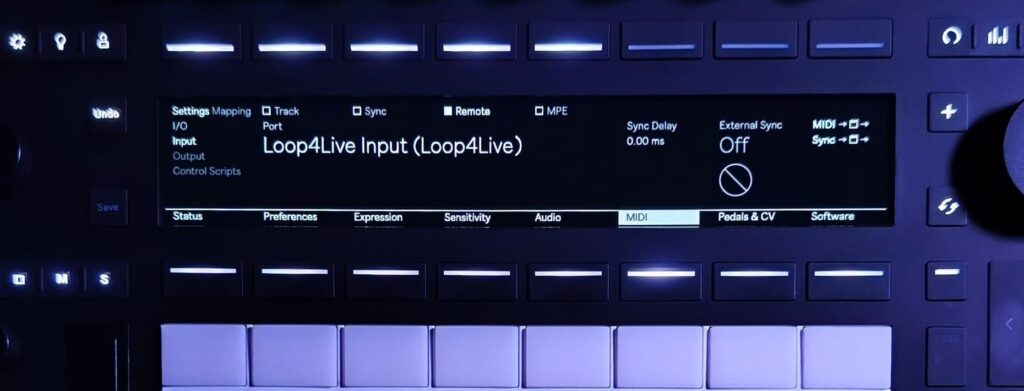
In the Input section, check the Remote box and uncheck Track and Sync. Do the same in the Output section.
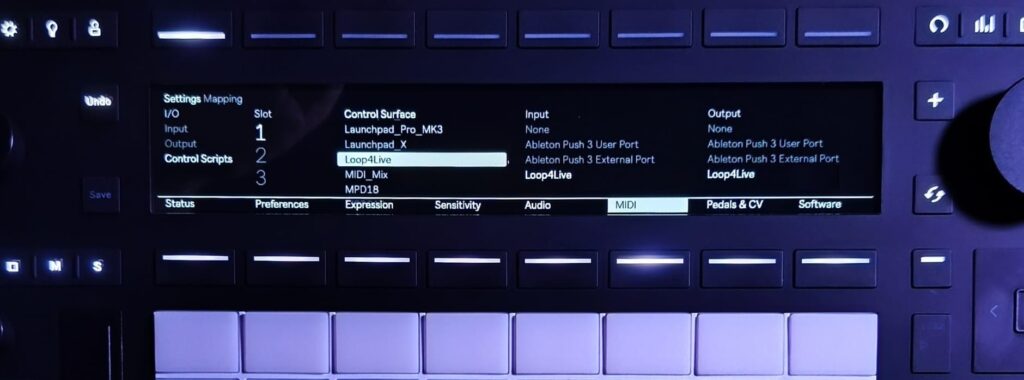
In the “Control Scripts” section, select Loop4Live in the “Control Surface” column, and select Loop4Live as both the input and output as follows:
Configuration of the pedal
The Loop4Live is now ready for use, but you still need to configure it. We covered how to configure the pedalboard in section 6D.1. HOW TO CONFIGURE THE LOOP4LIVE of the manual.
This process generates the l4l_config file, which contains the configuration settings, in the Loop4Live “home” directory (for macOS: /Users/your_username/Loop4Live; for Windows: C:/Users/your_username/Loop4Live).
We’ll need to copy this file to the Push 3. Either you’ve already configured your pedalboard for Ableton on your computer—in which case you simply need to copy the l4l_config file from your computer to the Push 3 or you’ll need to generate the file from our website (see 6D.3. GENERATE THE CONFIGURATION FILE VIA THE WEBSITE of the manual).
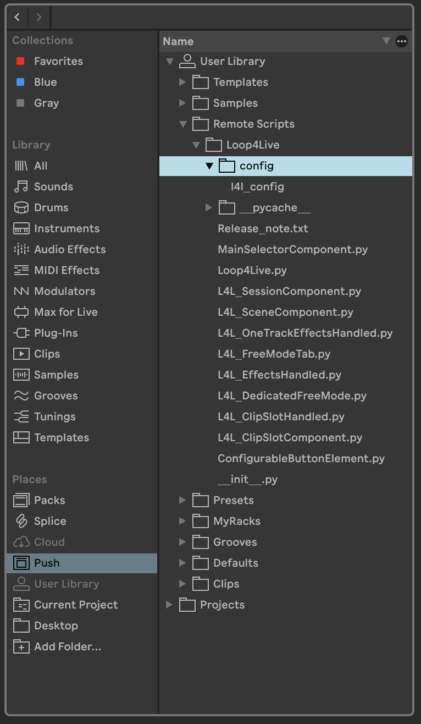
To copy the file to the Push 3, create a folder named “config” in the Loop4Live remote scripts folder on the Push 3 as follows, and place the l4l_config file there:
Finally, restart your Push 3 in standalone mode, and the pedalboard configuration will take effect.